Get the SuperMap License Center
On the Windows platform, the SuperMap License Center is used to manage the licenses of the SuperMap GIS 10i(2020) series, which allows you to configure license information, manage license information, and view detailed licensing status and usage on the target machine.
The SuperMap Licensing Center is available in a number of ways, and you can obtain it in any of the following ways:
- The SuperMapLicenseCenter licensing tool is available in the SuperMap iEdge product package and is located in the% SuperMapiEdge9D% \ support \ SuperMapLicenseCenter directory.
- Log in http://product.supermap.com.cn to download the SuperMap License Center (windows 32-bit)online installing tool(License CenterOnlineSetup.exe) and double-click Run LicenseCenterOnlineSetup.exe to install the latest version of the SuperMap License Center.
- Visit the SuperMap Technology Resource center(http://support.supermap.com.cn) to download the SuperMapLicenseCenter Zip Package (SuperMapLicenseCenter.zip) and extract the Zip package.
After obtaining the SuperMap License Center in the above manner, you can start the License Center by running the SuperMap.LicenseCenter.exe or SuperMap.LicenseCenter (for .NET 4.0) .exe file in the above directory.
Note: On the Windows 8 / Windows 10 / Windows Server 2012 R2 / Windows Server 2012/ Windows Server 2016 operating system, double-click the SuperMap.LicenseCenter (for .NET 4.0) .exe file to start the License Center; in Windows 7 SP1/ Windows Server 2008 R2 / Windows Server 2008 operating system, you can double-click the SuperMap.LicenseCenter.exe file to start the license center.
Configure the license information
The SuperMap License Center is opened for the first time, and the program automatically installs the dependency driver and installs a 90-day trial license by default.
Configure a file license
The SuperMap License Center configures the file license in software activation mode. You can obtain the information of local machine from the SuperMap License Center and submit the information to Beijing SuperMap Software Co., Ltd. for formal permission. Once you have a formal license, you only need to update to the machine to complete the licensed configuration. Specific steps are as follows:
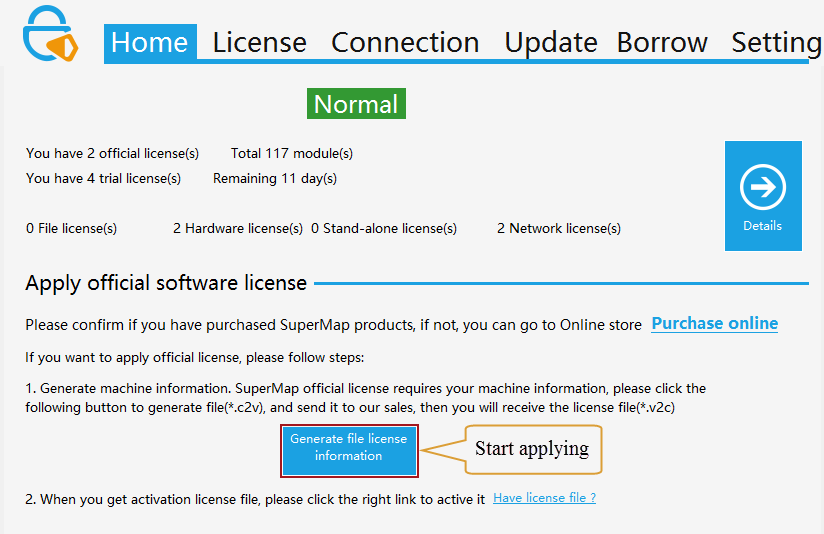
- Generate native information
Go to the SuperMap License Center home page and click the "Generate Local machine Information" button to generate the local information file (* .c2v) under the specified path.
- Submits local information to the Beijing SuperMap Software Co., Ltd.
Submits the local information file(* .c2v) to the Beijing SuperMap Software Co., Ltd., Beijing SuperMap Software Co., Ltd. will be based on your application to generate *. V2c official license file and return to you, after receipt please custody.
- Permission to take effect
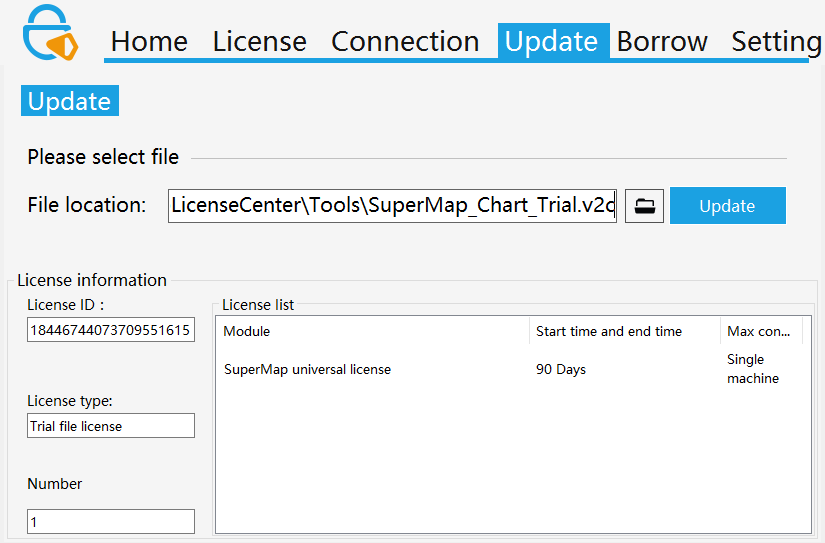
In the SuperMap License Center, open the "License Update" page, as shown below, browse and select the * .v2c official license file you obtained, and then click the "Update" button to make the license effective.
Configure the hardware license
In the Windows operating system, single-lock and network lock client, do not need to install the driver to run the license tool; network lock license server needs to install the license driver.
If the license server is configured on the same network segment in the current network environment, the license server is automatically obtained and configured. You do not need to configure it manually. If you need to set up a license server from another network segment, follow these steps:
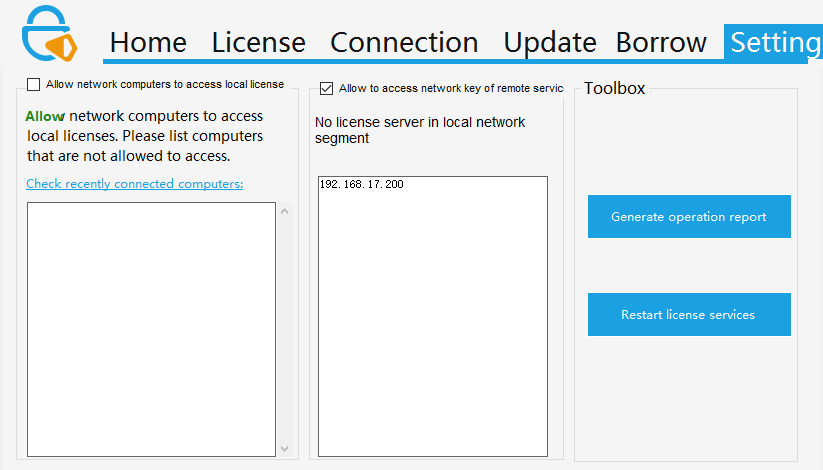
- Go to the Settings page of the SuperMap License Center
- Confirm that the "The network lock of allowing access to remote serve" check box is checked status
- If you confirm that the current computer is not on the same network segment as the network lock, fill in the license server IP or name in the "Non-network segment license server" list, and the default is empty. Depending on the network, wait a few seconds to a few minutes. You can also click on the right side of the "Toolbox" in the "restart license service", effective immediately.
Apply for a trial license
(1) generate a run report
Before applying for a trial license, you will need to run the report of the machine. Go to the Settings page of the SuperMap License Center and click "Generate Run Report" on the right. Will run the report file with the suffix .report, you need to specify the storage directory for the file.
(2) apply for a trial license
You can directly in Beijing SuperMap Software Co., Ltd. official website of the "SuperMap Technology Resource Center" to apply for a trial license, you will receive after the application:
- If you are requesting permission from the SuperMap GIS 7C series, you will receive a license file in the * .lic7c format
- If you are requesting permission from the SuperMap GIS 8C series, you will receive a * .lic format license file
- If you are applying for a license for the SuperMap GIS 9D series, you will receive a license file in the * .lic9d format
- If you are applying for a license for the SuperMap GIS 10i series, you will receive a license file in the * .lic10i format
(3) trial license effective
In the SuperMap License Center, open the "Activate Updates" page, browse and select the trial license file you obtained, and then click the "Update" button to make the trial license effective. 8C version of the license center can activate 7C, 8C file license, 9D version of the license center can only activate 9D file license.
Remove the trial license
The trial license applied to can be supported to remove, in the SuperMap License Center, open the "License Status" page, on the right side of the trial license name you have applied, there will be a "Clear Trial License" button. Click the "Clear Trial License" button. The license will be removed.
Note: The trial license that comes with the product package does not support to be removed.
Manage license information
With the SuperMap Licensing Center, you can view the license status, view license usage, update licenses, license borrowing / lending, and permission returning.
View the license status
The Permission Status page of the SuperMap License Center displays the license information of the SuperMap GIS 10i(2020) series on the target machine. The organization of the information is classified according to the product. Each of the following records corresponds to a license for the product Module.
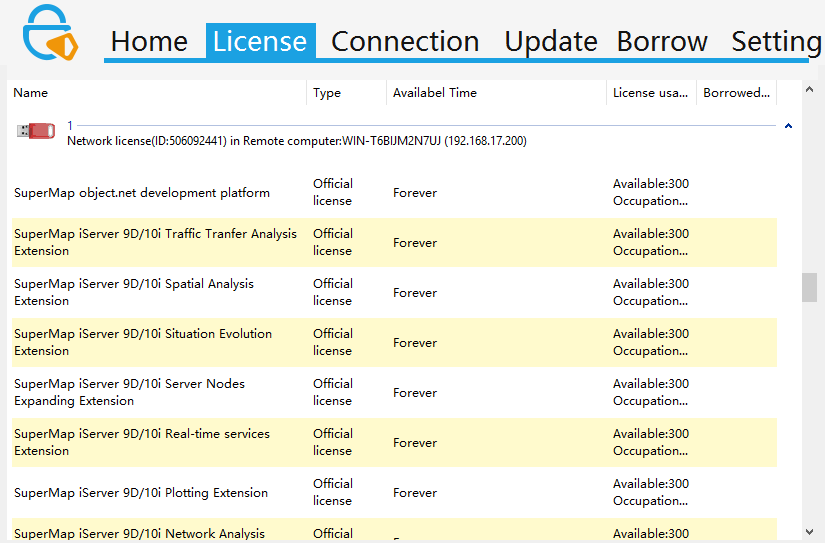
Each license module record shows detailed license information, where the specific meaning of each field is as follows:
- Name: License module name.
- Type: Indicates whether the license type is a trial license or a formal license.
- Available time: Displays the effective start date for the license module.
- Usage: Displays the current status of the license module.
- Lent number: Displays the number of loans that can be lent.
Check the license usage
The SuperMap Licensing Center's Connectivity page shows the details of the SuperMap GIS 10i(2020) Series product license modules that are currently being used on the target machine.
Where the contents of each field of the record are as follows:
- ID: ID of the license module.
- Module: The name of the license module.
- Address: The license location of the license module is displayed to be local if it is from local, otherwise the IP address of the corresponding machine is displayed.
- User: The user name and computer name of the computer where the license module is licensed.
- Process: Displays the process in which the current license module is being used.
- Time: The time when the current license module was connected.
Update the license
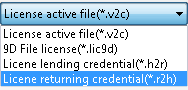
The License Update page of the SuperMap License Center is used to update the license. When you have a software-enabled official license file (* .v2c), you need to configure your license to make it valid by updating the license. License updates can accept the following files for different purposes:
- License activation file (* .v2c) used for the formal permission to activate the purchase on the current computer, you need to acquire the local information to generate the license activation file.
- 7C file license (* .lic7c), used to update the trial license of current computer 7C series, you need to generate the current computer running report.
- File license (* .lic), used to update the trial license of current computer 8C series, you need to generate the current computer running report.
- 9D file license (* .lic9d), used to update the tril license of current computer 9D series, you need to generate the current computer running report.
- 10i file license (* .lic10i), used to update the tril license of current computer 10i series
- Permission to lend documents (* .h2r) for lending a license from a network license to the current computer. You need to provide the local ID file to the license server, which is generated by the license server.
- The license return voucher(* .r2h) is used to return the loaned license to the current license server in advance and generated by the borrowed computer.
For trial licenses, the 8C version of the license center can update the 7C, 8C file license, 9D(2019) version of the license center can only update the 9D(2019) file license.
When you select a license activation file or after update file (* .v2c), it will automatically read the contents of the license in the file, but it will not be able to read if the file is saved in a cipher or a license or a certificate is selected, but also can be normally updated.
Specific update operation:
Open the License Update page of the SuperMap License Center, assign the target file to the File Location, and click the Update button.
License borrowing / lending
The SuperMap 10i(2020) license supports the ability to lend from a network file license to other computers on the network for the problem of temporary or long-term connection of the license server to the computer.
Note: Only network file license support license lending, network hardware lock or stand-alone file license can not be lent!
The steps are as follows:
-
See if you can lend a license, view the computers that can be connected
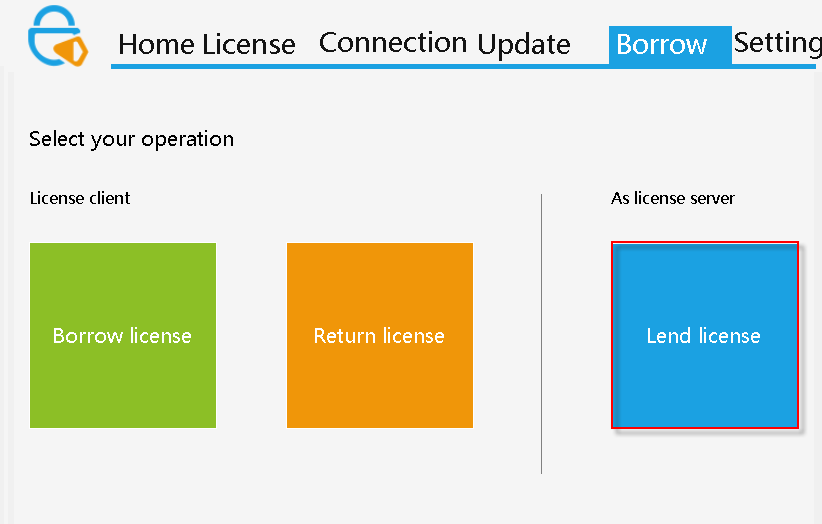
On the license server, go to the SuperMap License Center "borrowing and lending" page, as shown in the following figure.
If there is a license that can be lent in the current computer, you will see the "Lend License" button to proceed to the next step. If the current computer does not have a license to borrow, there is no button, the interface only exists "borrowing permission" and "return permission" two buttons, you can not license the loan operation.
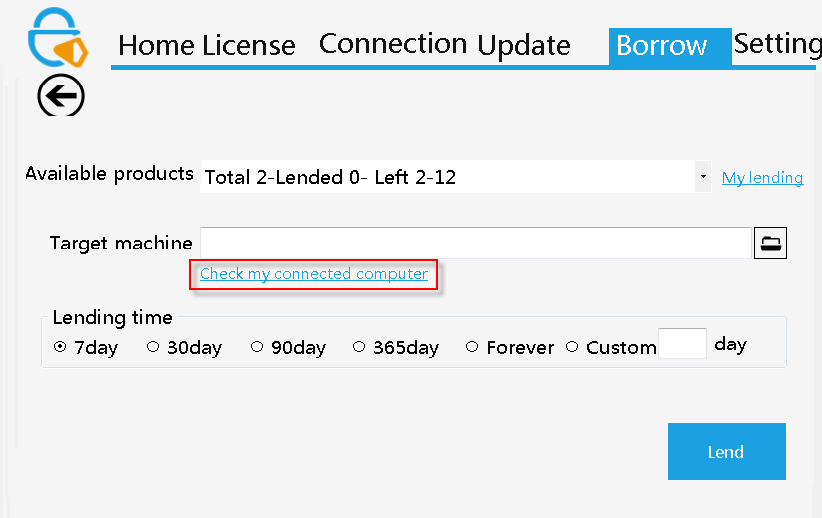
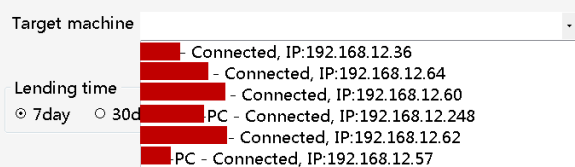
Click on the "lend license" to enter the page of lending license, click "see the computer I can connect", from the drop-down menu to find out whether there is a licensed target computer which need to lend the target licensed computer, if yes, directly see the third step, if not, please enter The next step.
- Generate ID information of target computer
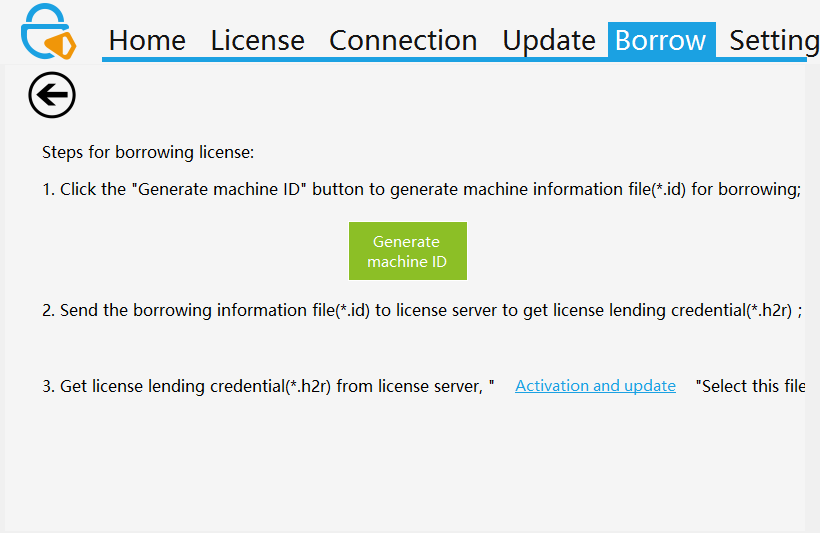
If you do not find the target computer in the previous step, "View the computer I can connect to," you will need to run the SuperMap License Center on the target computer, go to the "Borrowing and borrowing" page, click "Borrowing Permission" and click "Generate Local ID ", will generate a borrow information file (* .id). You need to transfer the file to the license server.
- The license server generates a lent certificate
On the license server, go to the "Borrowing and lending" page and click on "Licensing lending" to select the product you want to lend in the "Lend Products" drop-down list. The drop-down menu item shows the total number of currently selected product licenses , The number of licenses that have been lent, the number of licenses has been the remaining.
If after the item you selected appears the item below, and the "lending" button is also grayed out, the current license has been lent all (can be judged by the number of lent) or the current license is in use, and there is no spare The license can be lent. For the second case, we can turn off the application that is using the license or disconnect the network connection so that the loan license is valid.

Through the "view the loan" you can see the lent time and expiration time of target has been lent by the license.
If you can find the target computer in the "The computer list I can connect", select the item.
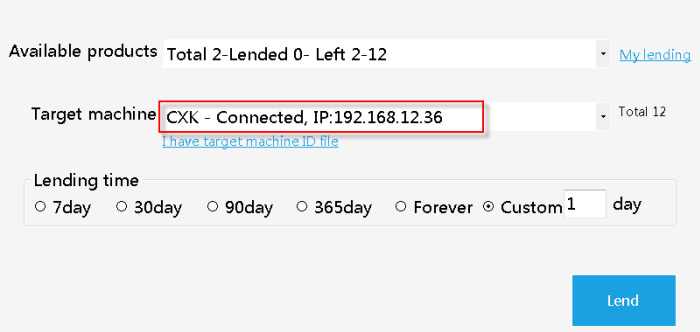
If you use the target computer's ID file, click the File button to select the information file (* .id) that is transferred to the local machine.
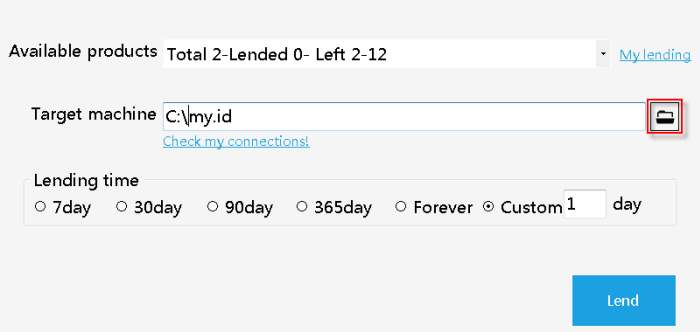
Click "View the computer I can connect" or "I have the target computer's ID file" to switch between these two different ways.
In the "lend time", select the number of days to lend the license, you can also choose to customize and enter the number of days to be lent. "Permanent" is not a normal sense of the permanent lending, but a long time concept, representing 9999 days, more than 27 years, so give its permanent concept.
Finally click on the "lend" button to generate a license certificate document(* .h2r), need to transfer the file to the target computer.
- The target computer updates the license lending certificate documents
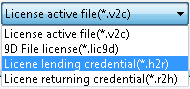
On the target computer, enter "Activate Update", select the file from the File button, select "License Lending Document (* .h2r)" in the File Type drop-down menu, select the file, click Update, Lend the license is completed. In the "Permission Status" page, you can view the borrowed license information.
Permission to return
The license borrowed from the license server is time-limited. When the borrowing expires, the current computer's borrowed license will be automatically deleted and a license number will be restored on the license server. This process does not require any manual operation, and completes automatically by the license driver.
But in some cases, we need to return the license in advance when permission dosen't expire, see the following steps:
- Generate a license return certificate
On the borrowed computer, go to the SuperMap License Center "Borrowing and lending" page and click "Return".
In the "Borrowed Products" drop-down list, you can view all the products currently borrowed and choose the licenses that need to be returned. You can view the information of the license below, including the number of days remaining, the expiration time, and the module information contained.
Once you have determined the information, click "Return" to generate the license return certificate (* .r2h) and need to transfer the file to the license server.
Note: The local license is returned, but only the local borrowed license is cleared, and the license server does not automatically restore the number of licenses. You need to transfer license return certificate to license server to update,the number of license server will be restored. Please keep the license return certificate, If you lost it only when the license expires ,the number can be automatically restored.
- The license server updates the return certificate
On the target computer, enter "Activate Update", select the file via the File button, select "License Return certificate (* .r2h)" in the File Type drop-down menu, select the file, click Update, and return the license.